Workflow: Streamlining Document Transitions
A workflow in BizzStream Aero serves as an invaluable tool that empowers you to model and streamline your business processes with ease. Combining three key concepts - Transitions, Authorization, and Actions – workflows offer a comprehensive solution to optimize document handling.
Actions: Driving Document Transitions
Smooth transitions between statuses in a workflow are achieved through carefully configured actions. BizzStream Aero provides four types of actions, each designed for specific purposes:
1. User Actions
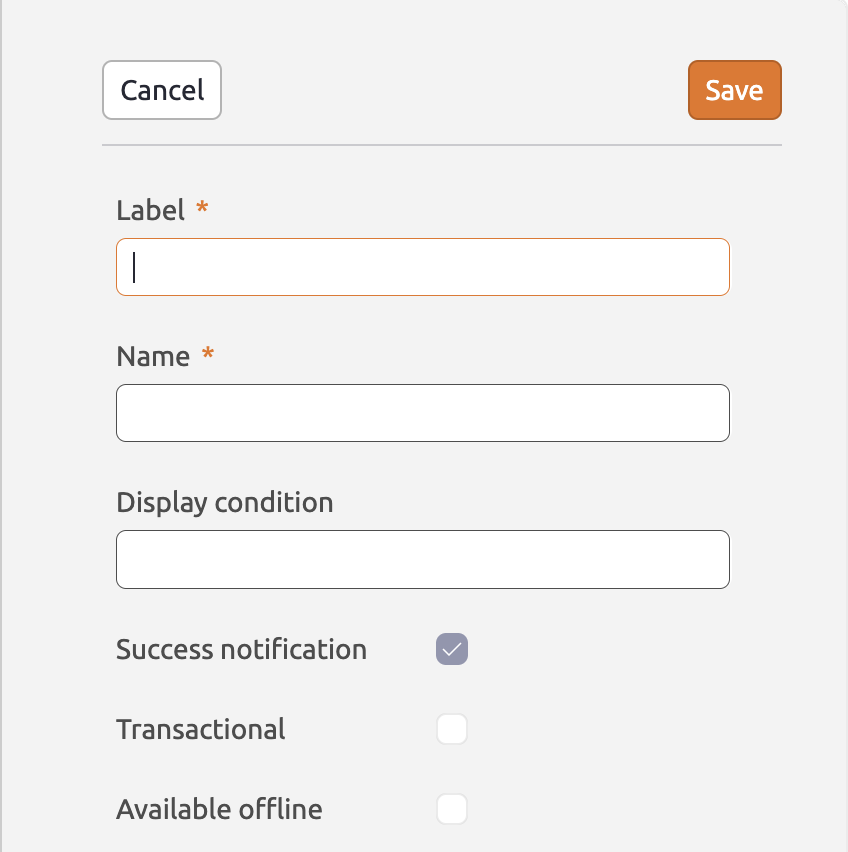 These actions can be triggered either by a user clicking a button or via REST requests. User actions actively engage users in the workflow, allowing them to initiate specific operations effortlessly.
2. Bulk Actions
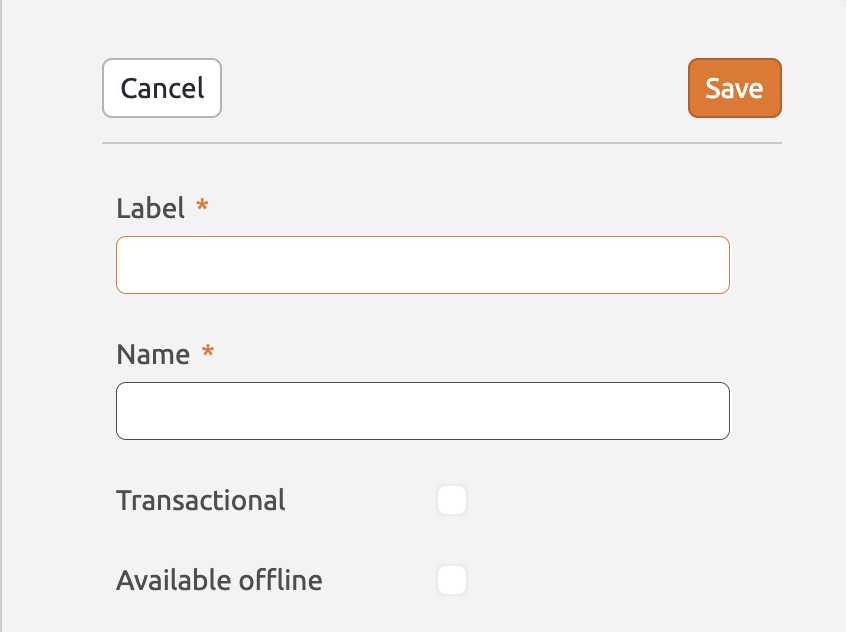 Bulk actions are a powerful feature that enables performing actions on one or multiple documents simultaneously. This proves highly beneficial for handling operations in batch mode and streamlining repetitive tasks.
3. Scheduled Actions
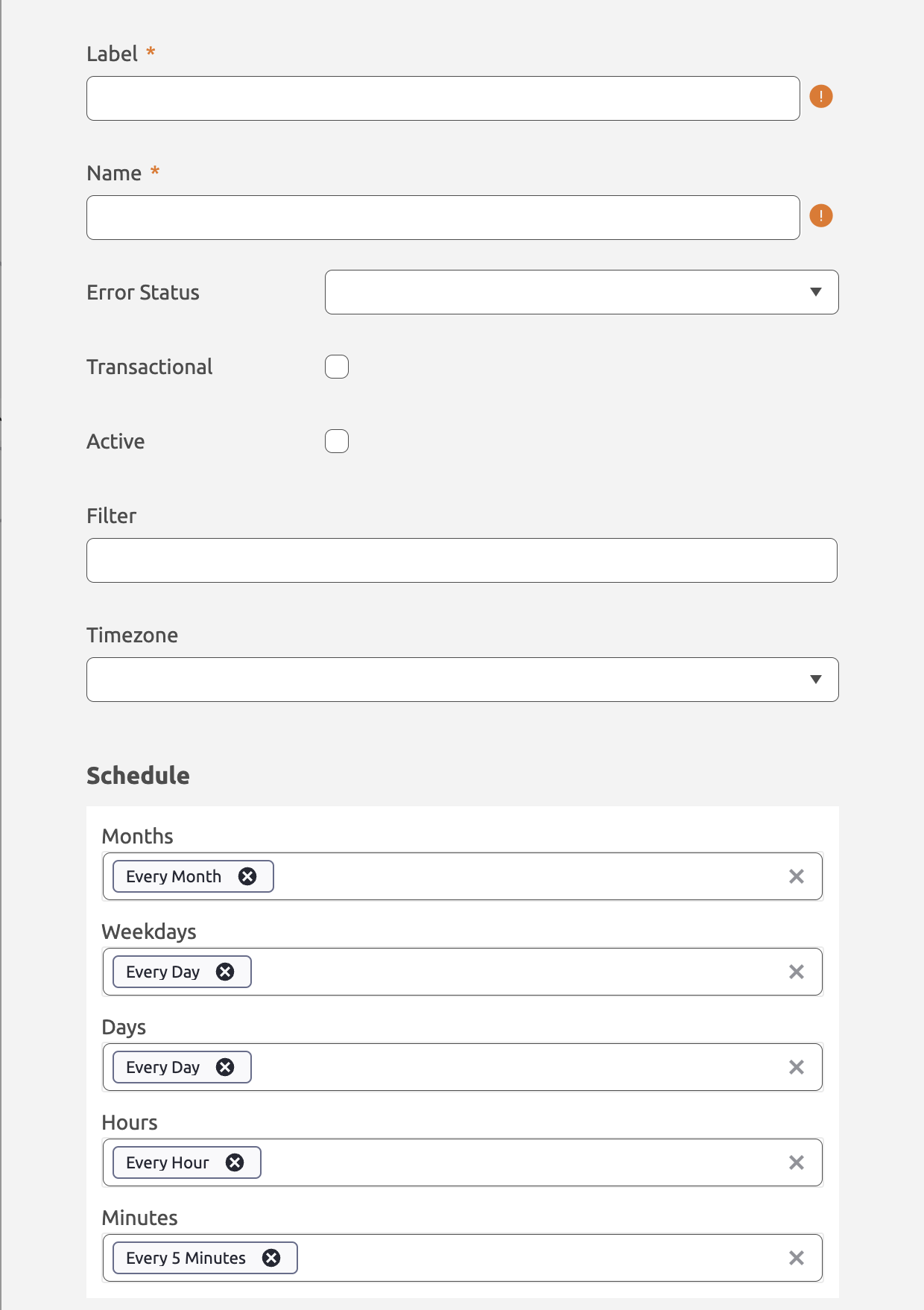 Scheduled actions are essential for automating processes based on specific times or intervals. By reducing manual intervention, these actions ensure the timely execution of crucial tasks.
4. Event Actions
Event actions are triggered when an event of a particular type occurs. When an event action executes, the action rules are applied to each document that passes the filter.
Note: When defining the filter, it is possible to use information from the event info by using BizzStream expressions. For example, the filter _id = {{F["invoiceId"]}} uses the field invoiceId from the event's info object.
Each action type comes with a set of properties that define its behavior within the workflow. Common properties include:
| Property | Required | Purpose | Action Type |
|---|---|---|---|
| Label | Yes | A human-readable name for the action. | All |
| Name | Yes | This is the name of the action in the database. | All |
| ID | N/A | This is autogenerated and is used to indicate which action should be available in a layout. | All |
| Success | No | This indicates whether a success message should be shown after the action was run successfully. | User |
| Transactional | No | If an action is transactional, database changes are rolled back if the action fails. For actions that process multiple documents, the transaction applies per document. | All |
| Active | No | If this is unchecked, the action will not run at all. | Scheduled, Event |
| Filter | No | A filter expression that pre-selects which documents the action runs on. Only documents matching the filter are processed. | Scheduled, Event |
| Timezone | No | This determines the time zone that should be applied to the action. If this is not set, UTC will be applied. | Scheduled |
| Schedule | No | This determines the specific time (or frequency) an action should run. | Scheduled |
| Event type | No | The type of the event that triggers an event action. | Event |
Transitions
A transition defines what status a document moves to after an action completes successfully. In the workflow editor, a transition is represented by a connection drawn from an action to a target status. When the action finishes, the document's status is automatically updated to that target status.
An action can be made available in multiple source statuses — each represented by a connection drawn from that status to the action. An action can have at most one target status.
Transitions are optional. If no target status is connected to an action, the document remains in its current status after the action completes.
Error Status
An action can also have an Error Status configured in its properties. If the action fails, the document is moved to this status instead of the target status. This allows you to model error recovery flows explicitly in your workflow.
Transactional Actions
When an action is marked as transactional, database changes are grouped into an "all or nothing" bundle. If the rules fail, all database changes are reverted, leaving all affected documents untouched.
For actions that process a single document (user actions), the entire action is one transaction. For actions that process multiple documents (bulk, scheduled, and event actions), the transaction applies per document: if processing fails for one document, its changes are rolled back, but documents that were already processed successfully remain committed.
What is Covered by the Transaction
The following rule types write to the database and are fully covered — their changes are rolled back on failure:
- Save Document
- Delete Document
- Set Field Value
- Add Visitor
- Execute Script — document operations performed inside the script ( creating, updating, or deleting documents) run within the same transaction and are rolled back if the action fails. Note that any external calls made from within the script (REST requests, emails, etc.) are not covered; see below.
- Save PDF
If the action has a target status configured, that status change is also part of the transaction.
What is not Covered by the Transaction
The following rule types reach outside the database. They execute during the action but cannot be undone if the action later fails:
| Rule | Side effect that is not rolled back |
|---|---|
| REST Call | The HTTP request has already been sent to the external system. |
| Send Email | The email has already been delivered. |
| Send Push Notification | The notification has already been sent to the device. |
Emit Event — Optional Delay
By default, an Emit Event rule fires immediately when it is executed, before the transaction is committed. If the event triggers further actions, those run before it is known whether the current transaction will succeed.
To avoid this, the Emit Event rule has a Delay in Transaction option. When enabled, the event is held back and only fired after the transaction has been committed successfully. If the transaction is rolled back, the event is not emitted at all.
The same option is available when emitting events from a server script using
bizzStream.emitEvent(eventType, eventInfo, { delayInTransaction: true }).
Creating a Workflow
To create a workflow, you can leverage the workflow editor and the statuses configured in the Statuses & Permissions tab. Follow these simple steps:
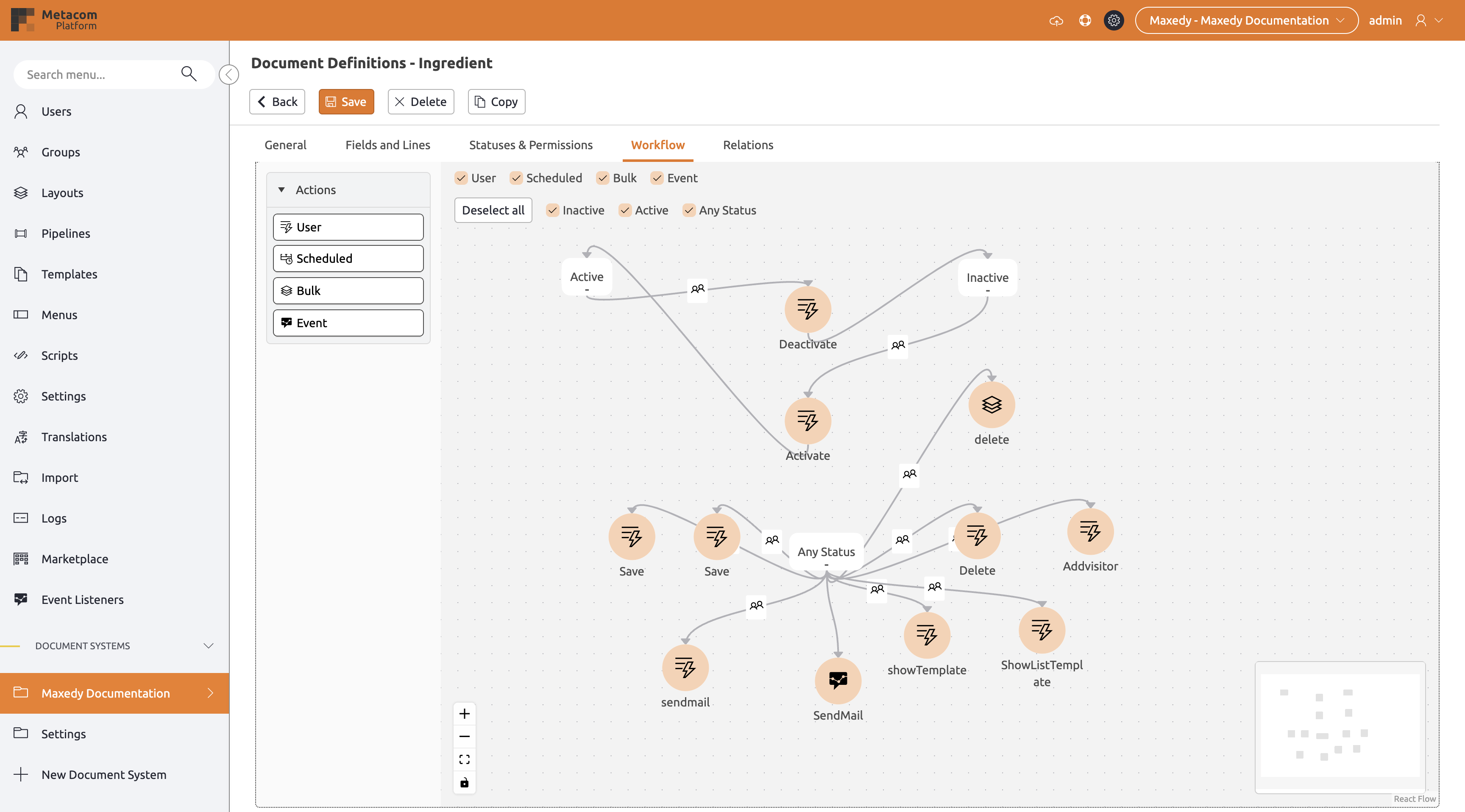
- Drag and drop one or more statuses from the left-hand side section onto the canvas.
- Similarly, drag an action from the left-hand side section onto the canvas. As you do so, the properties pane on the right will automatically open.
- Provide a descriptive Label for the action that will be visible to users. The Name will be generated automatically after you leave this field.
- Click Save to finalize the action creation, and the properties pane will close.
- Click on a status to select it.
- Establish a connection between the status and the action by clicking on one of the black squares on the border of the status and drawing a line to the action. This connection ensures that the action will be available to users for documents in the status to which it is connected.
- To create a transition, select the action and click on one of the black squares on its border. Then draw a connection to another status. This connection ensures that the document will be updated to the connected status after the action completes.
Action Rules: Enhancing Workflow Logic
To further enhance the logic of your workflow, you can add action rules to your actions. Rules define what happens when an action is executed — for example, saving a document, sending an email, or calling an external system. Each rule has the following properties:
| Property | Required | Purpose |
|---|---|---|
| Label | No | A human-readable label used to identify the rule in the workflow editor. |
| Description | No | A text that describes the purpose of the action. This allows administrators to add notes to an action that describe the administrator's intent. |
| Execute Condition | No | Using BizzStream expressions, conditions can be created to dynamically determine whether or not an action should be executed. |
Available Rules per Action Type
Different types of actions support a variety of rules, allowing for fine-grained control over workflow processes:
| Rule | User Actions | Scheduled Actions | Bulk Actions | Event Actions |
|---|---|---|---|---|
| Save Document | ✓ | |||
| Delete Document | ✓ | ✓ | ✓ | ✓ |
| Show Notification | ✓ | |||
| Send Push Notification | ✓ | ✓ | ✓ | ✓ |
| Set Field Value | ✓ | ✓ | ✓ | ✓ |
| Execute Script | ✓ | ✓ | ✓ | ✓ |
| Render PDF | ✓ | |||
| Save PDF | ✓ | ✓ | ✓ | ✓ |
| REST Call | ✓ | ✓ | ✓ | ✓ |
| Send Email | ✓ | ✓ | ✓ | ✓ |
| Go to URL | ✓ | |||
| Confirm Dialog | ✓ | |||
| Terminate | ✓ | ✓ | ✓ | ✓ |
| Export Documents | ✓ | |||
| Import Documents | ✓ | |||
| Emit Event | ✓ | ✓ | ✓ | ✓ |
| Add Visitor | ✓ | ✓ | ✓ | ✓ |
Permissions on Actions
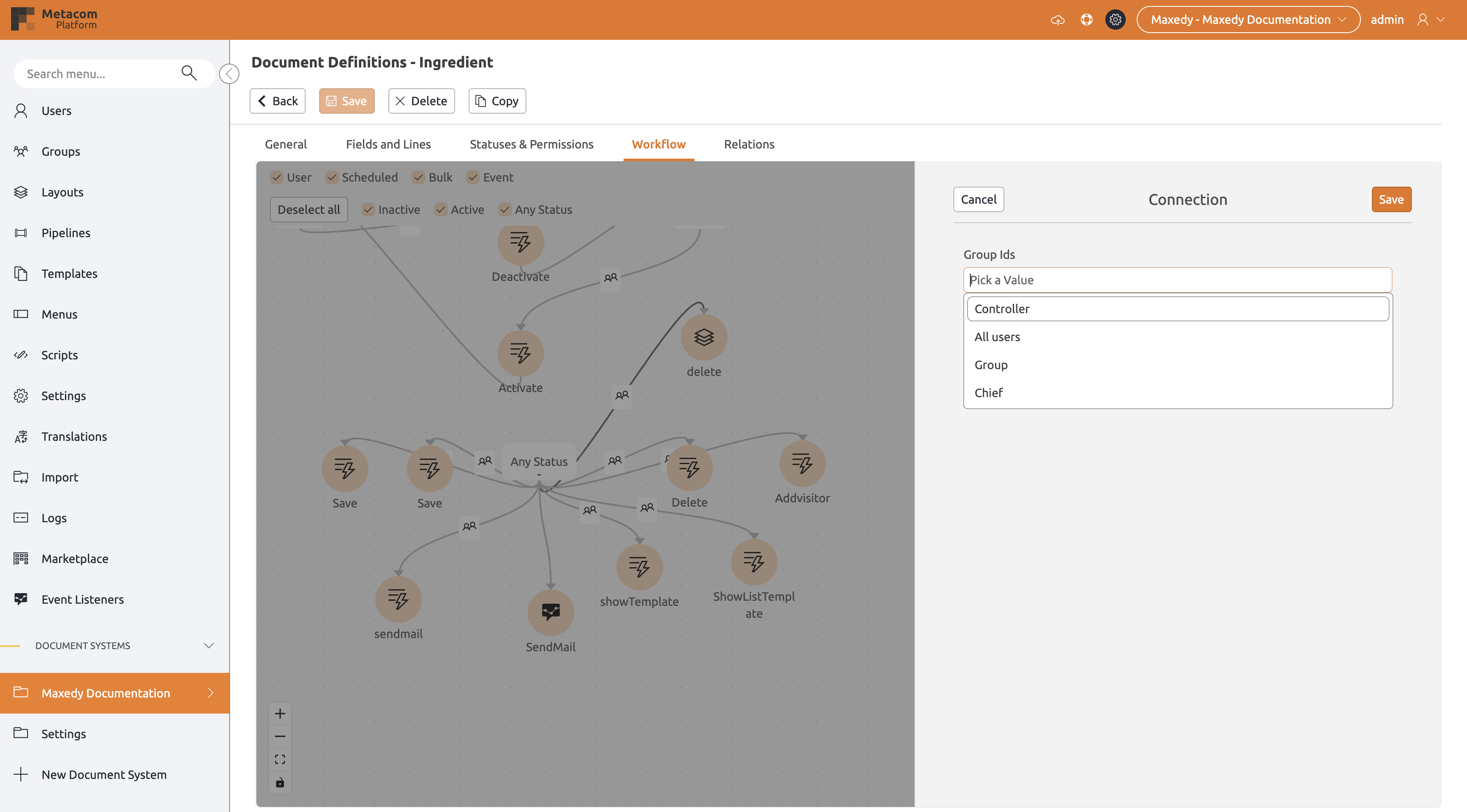
Viewing and editing of data in BizzStream documents is restricted by permissions set in access groups. For executing actions it is also possible to configure permissions in the workflow. In order to configure action permissions, you double-click the  button on the connection between a status and an action. In the properties pane you can then select the user groups or access groups that can execute the action.
- For user actions you can select which access groups should be able to execute an action.
- For bulk actions you can select which user groups should be able to execute an action.
Scheduled and event actions are not triggered by a user, so they do not have configurable execution permissions.
Tips
In the workflow editor there is plenty of space to build your workflow. For the best experience, take note of the following:
- You can zoom in and zoom out by scrolling in the workflow editor, using a pinch gesture on your track pad, or simply clicking the
 or
or  buttons in the bottom-left corner of the workflow editor.
 - To move within the editor, simply click and drag your cursor across the workflow editor.
- You can center your workflow in your view by clicking the
 button. The workflow editor will center your workflow and adjust the zoom level to fit it into view.
 - To prevent accidentally moving statuses or actions around, you can lock/unlock the workflow. You can do this by clicking the
 button. Note that you will still be able to open the properties pane to configure permissions and actions.