Embedded Layout
With the Embedded Layout control, you can display another layout directly inside the current layout. This lets you reuse a layout in multiple places or display different layouts depending on the data in the source layout.
To add an embedded layout control, drag Embedded Layout from the Generic Controls bar on the left-hand side onto the layout. The properties pane opens on the right. In the layout editor, the control shows a placeholder with the name of the control. The selected layout is only displayed when a user opens the layout.
The embedded layout control has the following properties:
Name (Required) Identifies the embedded layout control. Display condition expression (Optional) Determines when the layout configured in this block is displayed. The control itself is not connected to a dataset, so you refer to a dataset with a dataset pointer, for example DS["invoices"].F["invoiceType"] = "credit". An empty condition always matches.Layout (Optional) Selects the layout to display inside the current layout. A block without a layout displays nothing. Filters (Optional) Applies additional filters to document datasets in the selected layout. The filters can use values from the source layout. |
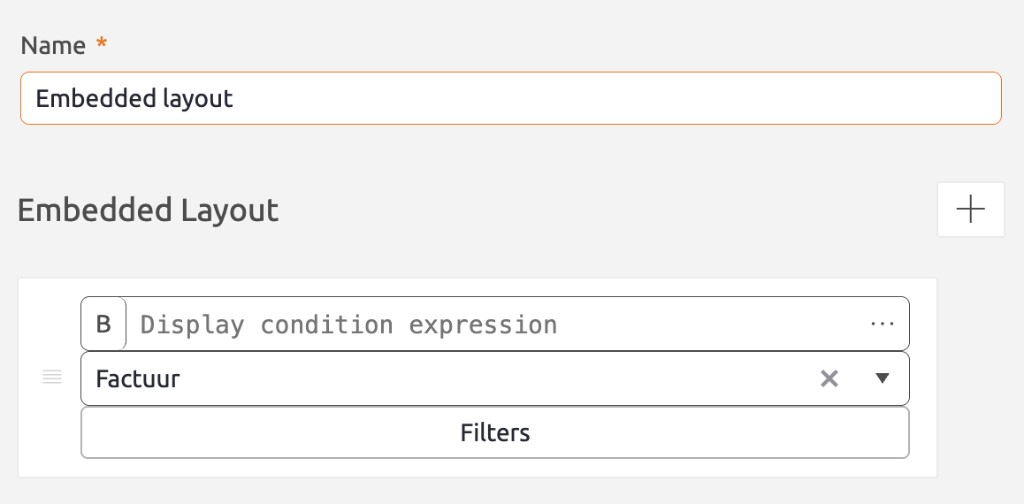 |
Note: The layout that contains the embedded layout control needs at least one dataset. Without a dataset, the embedded layout stays empty for the user.
Displaying Different Layouts
Click the Add button next to Embedded Layout to add another block. BizzStream evaluates the blocks from top to bottom and displays the first block whose display condition is true. If no block matches, the control displays nothing.
Place a block without a display condition last when you want to use it as a fallback.
Note: Selecting a different layout clears the filters configured for that block because the new layout can contain different datasets.
Nesting Embedded Layouts
An embedded layout can contain another embedded layout. BizzStream displays a maximum of 10 layouts in one chain, including the layout that contains the first embedded layout control. A layout also cannot embed itself, either directly or through another layout.
When a block reaches one of these limits, only that block stays empty. The rest of the layout is displayed as usual.
Using Embedded Layouts in Packages
A layout in one package can embed a layout supplied by another package. BizzStream treats this connection as optional, so you can install or import the first package even when the package containing the embedded layout is not available yet.
During a package installation or an import with the Import Wizard:
- If the embedded layout is available in the target environment, BizzStream connects the control to that layout.
- If the embedded layout is not available, the installation or import continues and BizzStream removes the block from the layout in the target environment. The rest of the layout remains usable.
- If you install or import the other package later, BizzStream automatically restores the block. You do not need to reinstall the first package or configure the control again.
The embedded layout counts as available once the target environment contains the version of the other package that the layout was built with, or a newer version. As long as an older version is installed, the block is removed.
When using the Import Wizard, include the embedded layout in your selection if you want the connection to work immediately. If you leave it out and it does not already exist in the target environment, BizzStream can restore the block when you import it later.
Note: A layout that belongs to the same package as the layout that embeds it is always installed together with it, so its block is never removed.