Layout Actions in BizzStream Aero
In addition to running workflow actions, Aero enables administrators to configure layout actions. These actions do not need to be embedded in the workflow and can be added directly to any layout. This section explains the various layout actions available to you.
Close Layout
The "Close Layout" action simply closes the layout in which the button was clicked.
Open Overlay Layout
The "Open Overlay Layout" action allows you to open another layout in a popup, much like the overlay layout. However, the layout in the popup can serve various purposes, such as creating new documents on the fly or connecting documents to one another.
Configuring an Overlay Layout
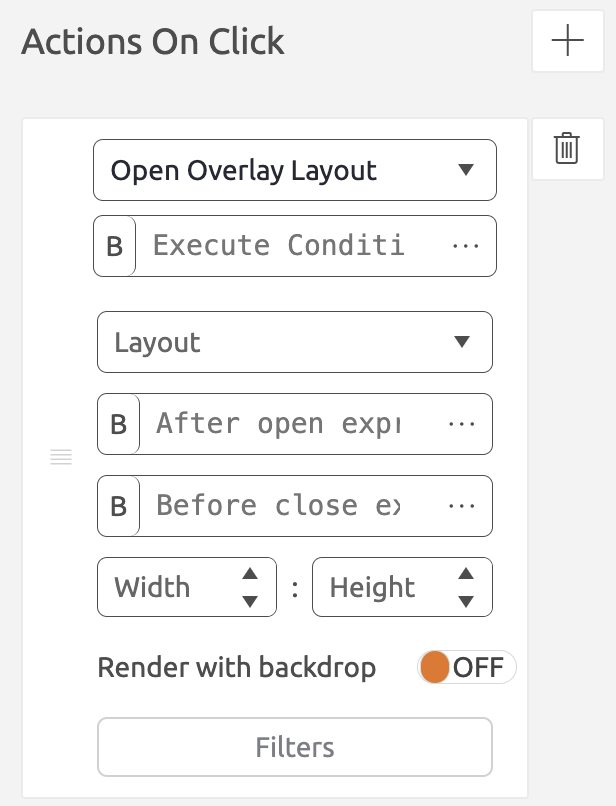
You can configure the "Open Overlay Layout" action on a button or as part of an action group. To set it up, add an item under Actions On Click in the button properties. Under Select an action, choose Open Overlay Layout. The action has the following properties:
| Property | Description |
|---|---|
| Execute Condition (Optional) A BizzStream expression to determine whether the action should be executed. Layout (Required) The layout to open in the popup. Title (Optional) The title of the popup window. Accepts a Text Expression. If left empty, the title of the button is used, or its label if the button has no title. After Open Expression (Optional) A BizzStream expression that determines under what circumstances the grid control should be displayed. Disabled Condition (Optional) An expression to set the value or state of a control after the overlay layout is opened. Before Close Expression (Optional) An expression to set the value or state of a control before the overlay layout is closed. Width and Height (Optional) Specify the size of the popup window. If left empty, a default size is applied. Users can always resize the window. Render with Backdrop (Optional) If enabled, only the overlay is editable, and the background is locked behind a grey overlay. If disabled, users can interact with both the overlay layout and the underlying source layout. Filters (Optional) Configure dataset filters that apply to the layout opened in the overlay. |
 |
Overlay Title
The title is resolved before the overlay layout is instantiated, so OVRLTGT pointers cannot be used in it.
The title is a snapshot taken when the overlay opens. It does not update while the overlay is open.
Using Field Values Between Layouts
Information from the underlying document can be 'copied' into the overlay layout in the popup. For instance, a resource from the source document may be needed in a newly created document in the overlay. Conversely, data from a newly created document in the overlay might be relevant for the underlying source document. Using the After Open Expression and Before Close Expression, values can be transferred between the source layout and the overlay layout. Use pointers like OVRLTGT and OVRLSRC for this purpose.
Example
SETVALUES([OVRLTGT.DS["project"].F["resource"],F["resource"]])
This copies the value of the Resource field in the source layout into the Resource field in the overlay layout. OVRLTGT indicates that the dataset to be updated is in the overlay layout.
SETVALUES([OVRLTGT.DS["project"].F["resource"],OVRLSRC.DS["anotherDataset"].F["resource"]])
This copies the value of the Resource field from a different dataset in the source layout into the Resource field in the overlay layout. OVRLSRC indicates that the value should be copied from a different dataset than the one connected to the button. If the source layout contains only one dataset or the value is copied from the same dataset as the button, the OVRLSRC pointer is not necessary.
Set field value
This action works exactly like the Set Field Values rule in the workflow.
Open QR Scanner
The "Open QR Scanner" action opens the device camera so the end user can scan a QR code. You can add it to a button's Actions On Click like any other action. Once a code is scanned, its value is available through the QRSCAN() BizzStream expression — in the rest of the action chain in Single mode, or in the Actions per scan list in Continuous mode (see below). For example:
SETVALUES([F["code"], QRSCAN()])
This writes the scanned value into the code field. QRSCAN() always returns the most recently scanned value; an optional index, e.g. QRSCAN(0), returns a specific scan from earlier in the same chain.
Scan mode
| Property | Description |
|---|---|
| Scan mode | Single (default) — scans one code, closes the scanner, and runs the rest of the action chain once. Continuous — keeps the scanner open after a scan. Selecting this mode reveals a separate Actions per scan list on the action itself; add the actions there that should run for every scan. As soon as one scan's actions finish, the user can scan the next code, which independently triggers the same list again. This repeats until the user closes the scanner, without needing to press the button again. Scans are always processed one at a time: if a code is scanned while the previous one's actions are still running, it is held until they finish. If the actions fail for one scan, an error is shown but scanning continues. |
The Actions per scan list is independent of the rest of the button's action chain: any actions configured after "Open QR Scanner" in the main chain are unaffected by Continuous mode and simply run once, normally, after the scanner is closed — they are not re-run per scan.
Continuous mode is meant for scanning many items in a row, such as checking in a batch of packages, without reopening the scanner for each one.